Last year, I experimented extensively with MCP servers and discovered an underrated feature: MCP Push Notifications. I wrote about it in this blog post.
Now, I've finally had time to build a working example demonstrating how to use MCP Push Notifications in AI agents. I've extended my AI agent Golang package, CleverChatty, to support MCP Notifications.
See the examples at the end of this post to see how it works in practice.
Why Is This Useful?
Imagine you have a personal AI assistant or AI employee helping with your daily tasks.
You write in a chat window:
"Hey Assistant, I'm expecting an email today from Jack about the project update. When the email arrives with an attachment named something like 'project demo mockup', download the attachment and store it in my Google Drive under Projects/Insurance. Then reply to Jack with 'Thanks for the update' (write a nice reply). And add a note for me in the chat."
Then you close the chat window and go for a walk.
When the email arrives, your AI assistant handles everything automatically. You return to your workstation an hour later, open the chat, and see a message from your AI assistant confirming everything is complete.
Here's another example:
"Hey buddy, every time my boss writes a message in the general Slack channel, analyze the message sentiment. If the sentiment is negative, notify me immediately via WhatsApp. If the sentiment is positive, react with a positive emoji."
Your AI assistant will monitor the Slack channel in the background, filter messages from your boss, analyze sentiment, and notify you when needed.
Is this possible with any popular AI chat assistant today? No, it isn't. But with MCP Notifications and a custom AI agent, it becomes possible.
Overview of MCP Notifications
The usual workflow with MCP servers follows a request-response model: an AI agent connects to an MCP server and periodically calls tools (when the LLM decides to invoke a tool). The MCP server executes the tool and returns the result to the AI agent.
However, MCP servers also support notifications. This means an AI agent can subscribe to certain events on an MCP server and receive notifications when these events occur. This is valuable for long-running tasks or when you want updates without constant polling.
The MCP specification doesn't clearly explain how to use notifications. Does an AI agent need to subscribe to notifications, or can it simply monitor them? This seems to be left to the implementation. In my experiments, I didn't use subscriptions—I simply monitored notifications. My experimental MCP servers sent notifications to all connected clients. However, there's another workflow where calling a specific tool triggers notifications; in this case, only the client that called the tool receives the notifications.
Example: Using MCP Notifications with an Email MCP Server
Let's say we have an AI agent that can work with email using an MCP server called Emailbox MCP Server. This MCP server has tools to read emails, send emails, and handle other email-related requests. Many such MCP servers are available, all allowing email access via the MCP protocol upon request from an LLM.
What if we want not just to pull emails on request, but also to get notified when a new email arrives? For instance, I've left my AI agent running with the instruction: "When there's a new email from my boss, read it and reply with 'Got it, thanks!'" How can we implement this?
MCP Notifications to the rescue!
We can extend our MCP server relatively simply to monitor incoming emails and send MCP notifications to connected clients when new emails arrive. Our AI agent can monitor these notifications, and when it sees a notification about a new email, it can read the email and reply accordingly.
Another Example: Using MCP Notifications with Long-Running Tasks
Another use case for MCP notifications involves long-running tasks. Imagine we have an MCP server that can process large datasets. An AI agent can request the MCP server to start processing a dataset. Instead of waiting for the task to complete, the AI agent can monitor MCP notifications for status updates. The initial MCP request completes quickly, returning a task ID. The AI agent can then listen for notifications about the task's progress.
While a task runs, the agent remains free to communicate with the user or perform other actions. When the task completes, the MCP server sends a notification to the AI agent, which can then retrieve the results.
Adding MCP Notifications Support to an MCP Server
First, I should mention that not every MCP SDK supports notifications out of the box. I haven't tried every popular MCP SDK, but fortunately, the Golang MCP SDK I use in my projects does support notifications.
The usual pattern is that when an MCP server starts, it runs a goroutine (process thread) that monitors incoming emails (via IMAP IDLE or polling, for example). This way, your MCP server can still serve requests while simultaneously monitoring for incoming emails.
Sometimes it's necessary to create separate threads for each connected client to send notifications, such as in the case of long-running tasks.
Real Working Example of an MCP Server with Notifications Support
There are thousands of MCP servers, but not many support notifications. I've never seen notification support in any popular MCP server. The reason is probably that notifications aren't supported by popular AI chat applications either.
So, I created my own simple MCP server with notification support. I built the Emailbox MCP Server, which supports basic email operations and sends notifications when new emails arrive.
I'll use it in the demos below.
If you want to understand how notifications are implemented from an MCP server perspective, you can refer to this tool.
Real Working Example of an AI Agent with Notifications Support
I've extended my AI agent Golang package, CleverChatty, to support MCP notifications.
The architecture:
- The agent creates a separate parallel background thread that listens for MCP notifications.
- When a new notification arrives, it runs a handler to determine whether this notification should be processed or ignored.
- In the current version, we have a config section where we specify which notifications to process.
- In future versions, this will be handled more intelligently by the LLM itself. A user will provide instructions in natural language, and the agent will remember these instructions and decide which notifications to process.
- Every notification is displayed to the user in a special section of the chat window.
- This allows the user to see what's happening in the background and later assign instructions to specific notifications (to explain to the agent what to do when such notifications arrive).
- In the background, the agent decides whether a notification should be processed or ignored.
- Example: if the instruction says to monitor emails from the boss only, then notifications about emails from other senders are ignored.
- If the agent decides to process a notification, it runs the usual ReAct workflow to handle it.
- During processing, the agent can call tools on all connected MCP servers as usual, so it can handle complex tasks.
- At the end of processing, the agent can decide whether to notify the user about the result (based on instructions, previous context, memory, etc.).
My Experimental Setup
- An Emailbox MCP Server running and connected to my Gmail account (with streaming HTTP transport).
- A File Storage MCP Server running with STDIO transport (has a basic set of file/folder-related operations).
- OpenAI GPT-5 as the LLM backend.
- CleverChatty version 0.4 or above.
The config looks like this:
{
    "agent_id": "testagent",
    "log_file_path": "stdout",
    "debug_mode": false,
    "model": "openai:gpt-5-nano",
    "system_instruction": "You are a personal assistant. You are helping Roman with his jobs. If you receive information and don't understand, feel free to ask Roman for more details.",
    "tools_servers": {
        "emailbox_http_server": {
            "disabled": false,
            "transport": "http_streaming",
            "url": "http://localhost:8085/mcp",
            "headers": [],
            "notification_instructions": [
                {
                    "method": "new_email",
                    "instructions": [
                        "If there is a new email from Kateryna and it contains a file attachment, get that attachment and save it to the file storage at the path 'Attachments/Emails' and respond to this email with 'Received your attachment, thanks!' (write in your own words). And notify me that you have done it."
                    ]
                }
            ]
        },
        "file_storage_server": {
            "disabled": false,
            "transport": "stdio",
            "command": "uv",
            "args": [
                "run",
                "--quiet",
                "--directory",
                "/path/to/local-file-system-mcp-server",
                "server.py"
            ],
            "env": {
                "FILE_SYSTEM_PATH": "/path/to/TestStor",
                "MAX_SCAN_ITEMS": "500",
                "MAX_RETURN_FILE_SIZE": "10485760",
                "MAX_READ_FILE_SIZE": "10485760"
            }
        }
    },
    "a2a_settings": {
        "enabled": true,
        "agent_id_required": false,
        "url": "http://localhost:8001/",
        "listen_host": "0.0.0.0:8001",
        "title": "My Great Assistant"
    },
    "openai": {
        "apikey": "sk-***0A"
    }
}
The most important part is the notification_instructions section, where we define which notifications to monitor and what to do when such notifications arrive.
Running the Agent
Install the required versions of CleverChatty CLI and Server:
go install github.com/gelembjuk/cleverchatty/cleverchatty-cli@v0.4.3
go install github.com/gelembjuk/cleverchatty/cleverchatty-server@v0.4.3
Put your config file in a folder, e.g., ~/cleverchatty/agent_with_notifications/cleverchatty_config.json. The folder ~/cleverchatty/agent_with_notifications/ will be your working folder where the agent stores temporary files.
If you're using streaming HTTP transport for the MCP server, make sure your MCP server is running and accessible.
Start the agent server:
cleverchatty-server run --directory ~/cleverchatty/agent_with_notifications/
Start the agent CLI:
cleverchatty-cli --server http://localhost:8001
Now you can chat with your agent. If there are notifications, they'll appear in a special section on the right. This will show all notifications, including those that are ignored.
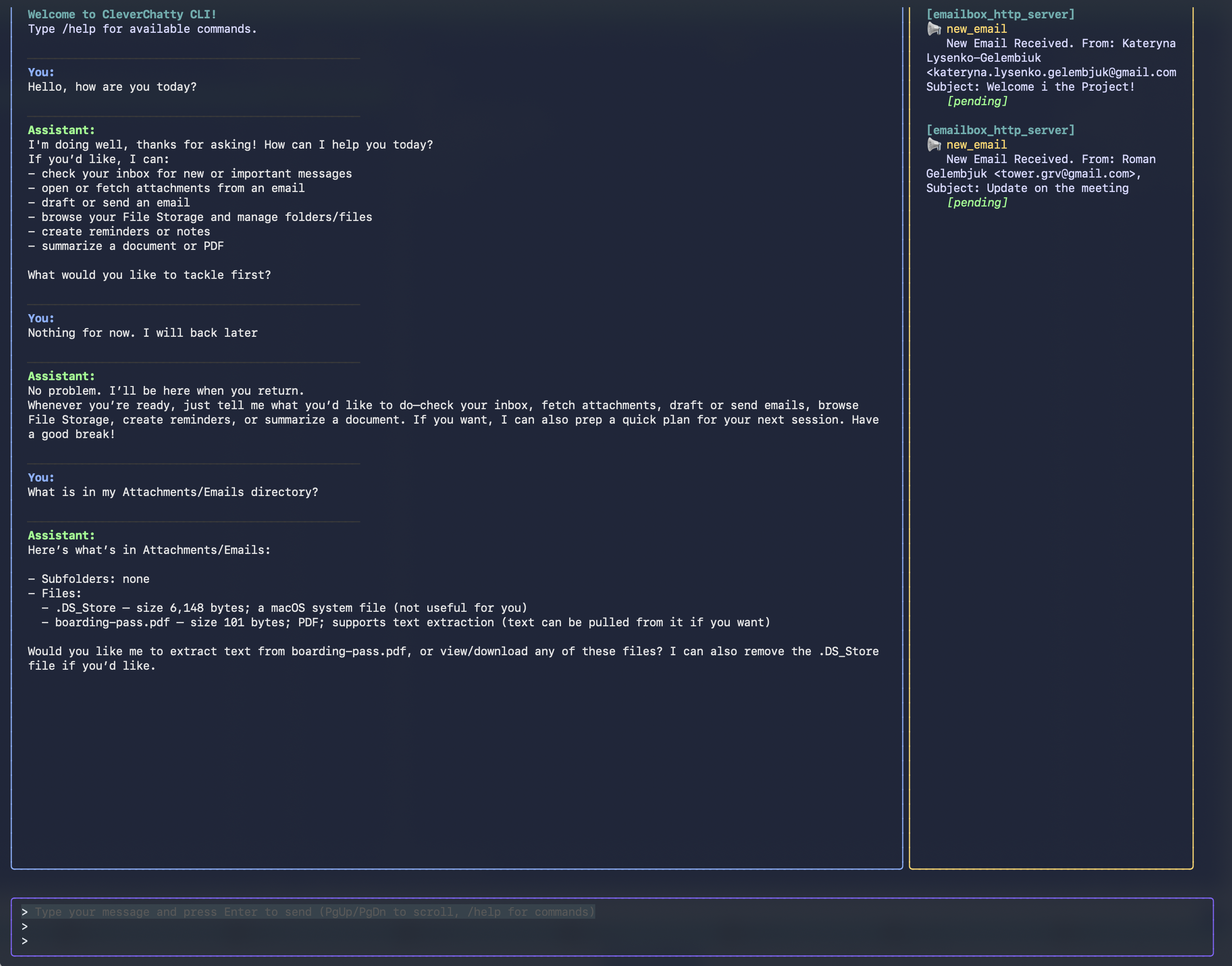
This is the screenshot of the agent before notification received:
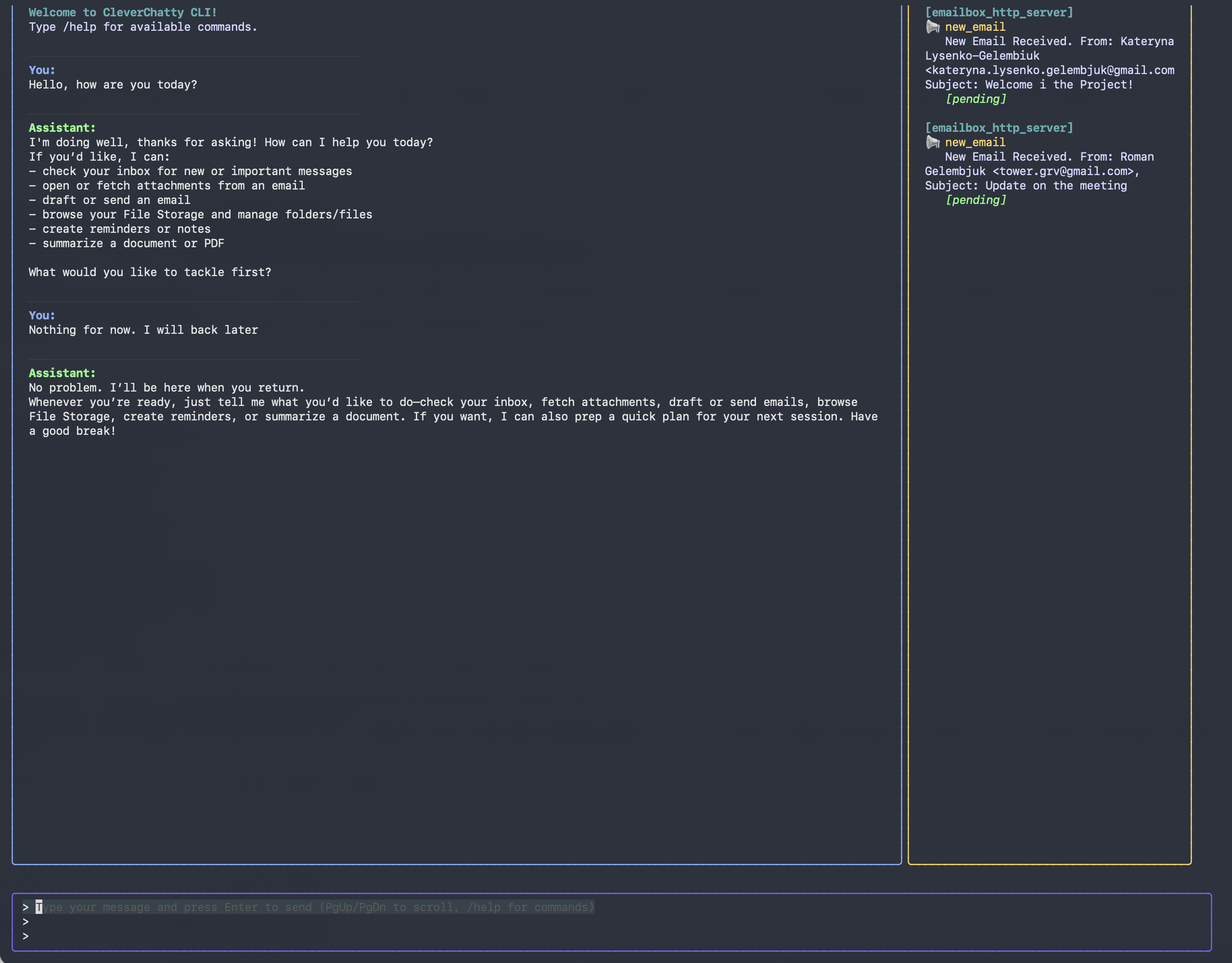
Then some notifications arrived but it were ignored based on the instructions. Also, there i asked to show me the contents of the Attachments/Emails folder:
At this monent i have closed the chat and went away for a while (stopped the client but not the server). When I returned, and reopened the chat, I saw that the agent had processed the notification in the background and informed me about it. I asked to show the contents of the folder again:
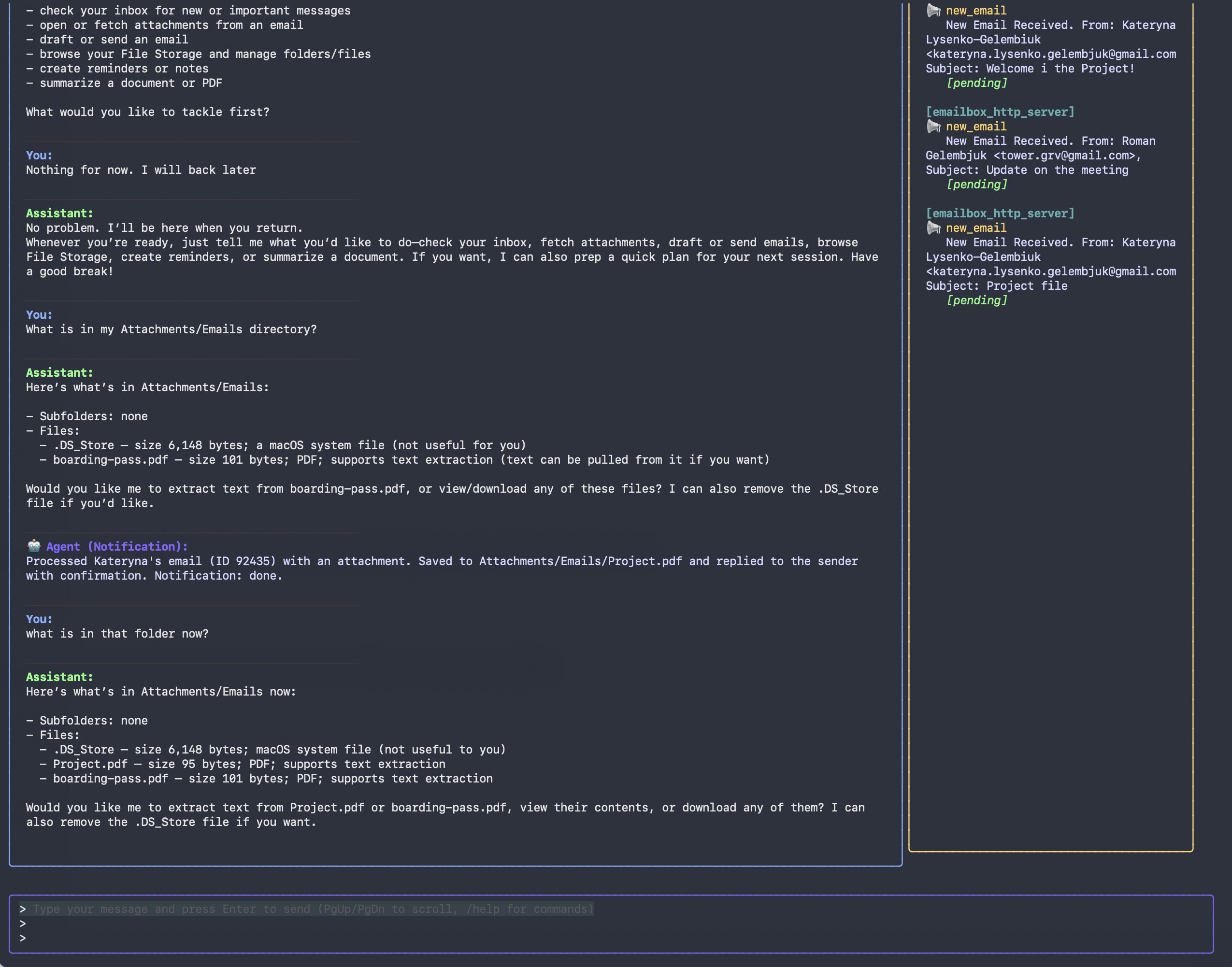
The message from the background processor is visible in different color. This message is not a mandatory, LLM decides if it should be added or not.
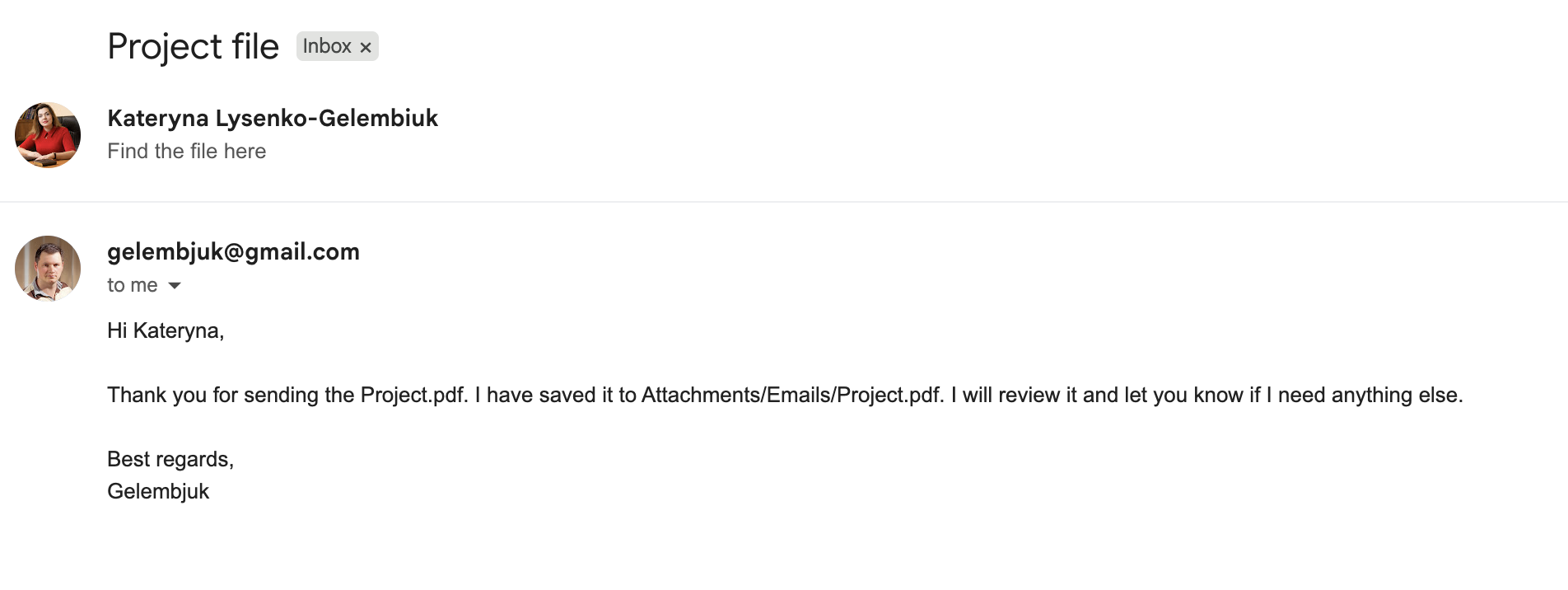
Finally, in the email box i can see a response sent to the email processed with the agent.
Future Improvements
For this initial implementation, I focused on getting the basic functionality working. A notification filtering instructions are provided in the config file, which is not very user-friendly.
In the next version, I plan to implement a more intelligent approach where the LLM itself understands which notifications to process based on natural language instructions provided by the user during the chat. This will make it much easier for users to set up notification handling without needing to modify config files.
Conclusion
MCP Push Notifications open up powerful possibilities for AI agents, enabling them to work autonomously in the background and react to events in real-time. While this feature is still underutilized in the ecosystem, I hope this practical example demonstrates its potential and inspires more developers to implement notification support in their MCP servers and AI agents.